Authentication System
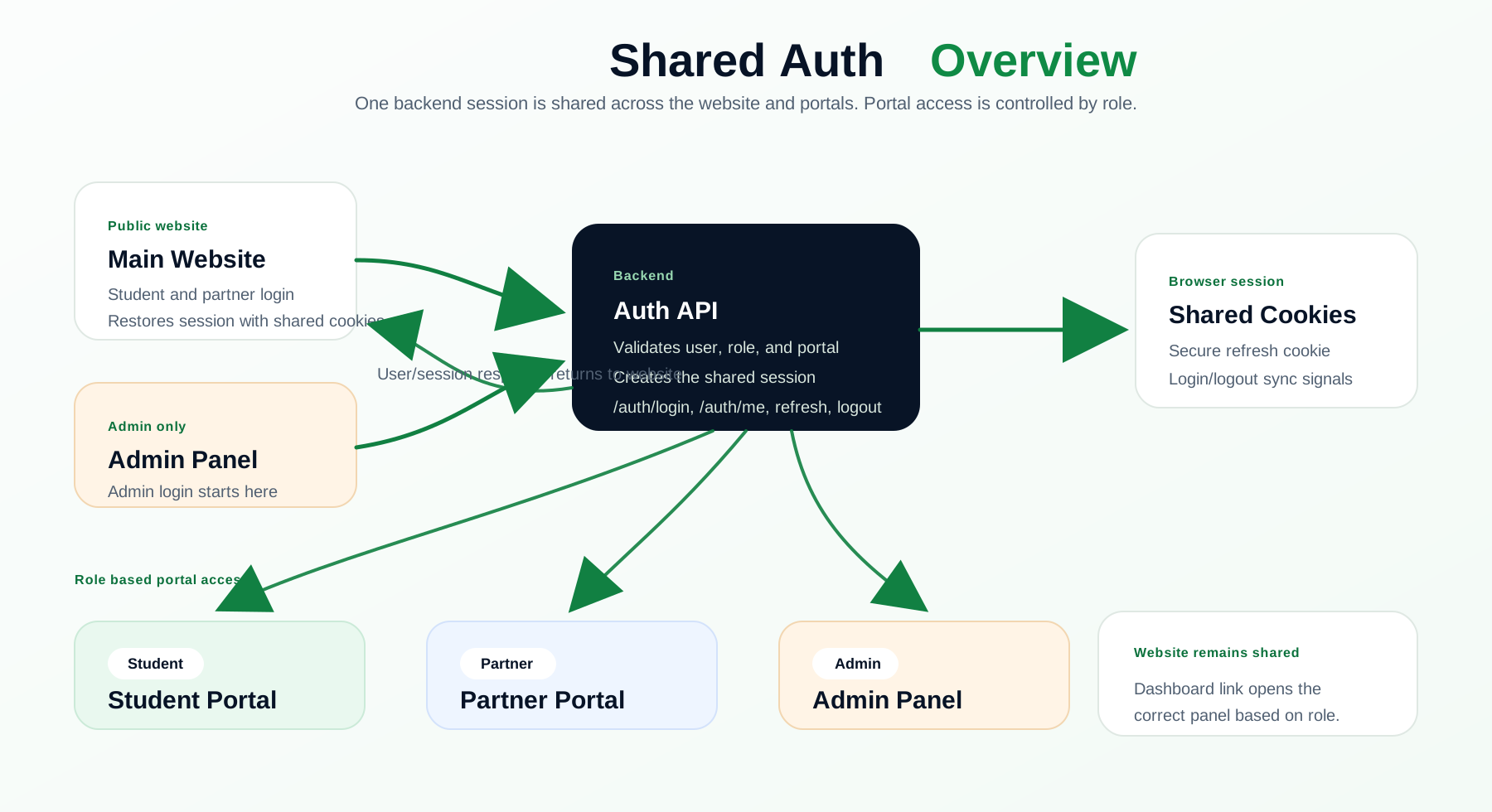
Campus Transfer uses one shared authentication system for the website, student portal, partner portal, and admin panel.
Overview
The same backend session is used across all Campus Transfer apps. If a user logs in from any portal, the main website can restore that session and show the logged-in user data.
This is shared auth because the session is created once by the backend and shared through secure cookies. The main website is common for all logged-in users, but portal access is role-based.
The backend also tracks browser-level session changes. It uses a shared browser id and Socket.IO broadcast so all open Campus Transfer tabs can refresh after login or logout.
From where can login
Student and partner users can log in from the main website.
Admin users can log in only from the admin panel.
After login, the user’s role decides where the user belongs:
- Student users go to the student portal.
- Partner and partner team users go to the partner portal.
- Admin, agent, and employee users go to the admin panel.
How login work
When a user logs in, the frontend sends the email, password, and portal type to the backend.
For example:
- Student login sends
loginPortal: student. - Partner login sends
loginPortal: partner. - Admin login is handled from the admin panel.
The backend checks the email, password, active status, and whether the account is allowed to use that portal. If everything is valid, the backend creates the session, sets the refresh token, sets the role_msbhh role cookie, and returns the user data with an access token.
The backend also sets shared session cookies. These cookies are global for Campus Transfer apps, so the same logged-in state can be restored from the website and other portals.
The first redirect depends on the role value from the backend. The frontend reads the restored user role and the role_msbhh cookie, then sends the user to the correct panel.
Flow:
User submits login
-> backend validates account and portal
-> backend creates session, refresh token, and role_msbhh cookie
-> frontend stores user data
-> frontend redirects based on role
Session cookie and browser sync
The backend sets the important shared auth cookies on the root Campus Transfer domain:
refreshTokenkeeps the secure refresh session. It is used by/auth/refresh-token.role_msbhhstores the logged-in role hint, so a portal can redirect before showing the wrong panel.ct_browser_ididentifies the same browser across the website and subdomains.
Each open tab also has a separate ct_client_id. Login and logout requests send these headers:
x-browser-id: ct_browser_id
x-client-id: ct_client_id
All apps connect to Socket.IO and join this browser room:
auth:browser:<ct_browser_id>After login, register, or logout, the backend broadcasts:
auth:session-changedOther open website or portal tabs reload when they receive the event. After reload, the normal auth restore flow decides whether the tab should show logged-in data, redirect to the correct portal, or logout.
Session restore
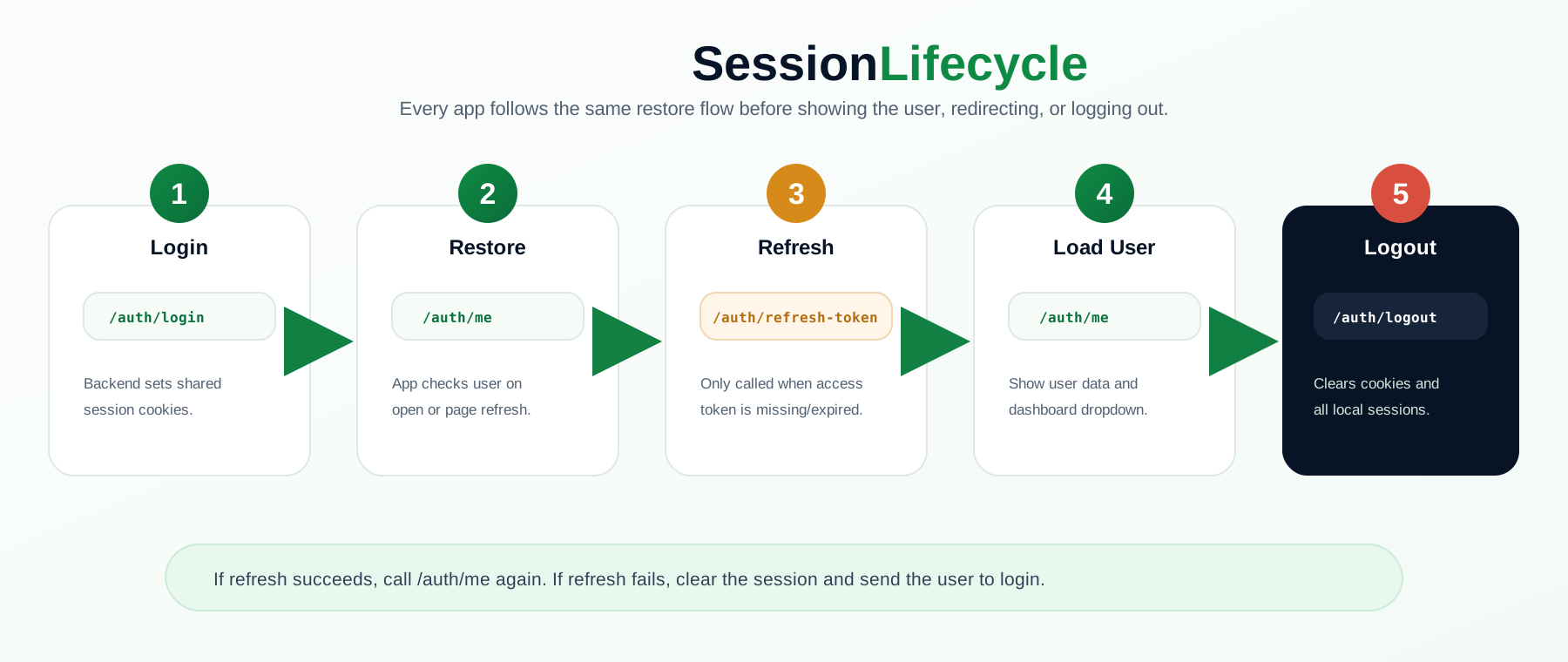
When an app opens or the page refreshes, it first calls /auth/me. If the access token is missing or expired, it calls /auth/refresh-token using the secure refresh cookie. If refresh succeeds, it calls /auth/me again and restores the logged-in user data.
If refresh fails, the app clears the session and logs the user out.
How portal redirecting work
Only one Campus Transfer portal session is active at the same time.
If a user logs in as a student, partner, or admin and then opens another portal, that portal checks role_msbhh and the restored user role. If the user already has a valid session, the app redirects the user back to the portal where that role belongs.
For example, if a student is logged in and opens the partner or admin portal, the app redirects the user to the student portal. If an admin is logged in and opens the student or partner portal, the app redirects the user to the admin panel.
Portal URLs are kept in the shared site config, so new portal links can be added from one place later.
The main website is shared for all roles. So if the user is logged in from the student portal, partner portal, or admin panel, the website user dropdown shows logged-in data, dashboard access, and logout.
The dropdown dashboard link opens the correct panel in a new tab based on role. From the portal dropdown, the user can also open the main website in a new tab.
If the refresh token is expired or invalid, the app clears the session and sends the user to login.
How logout work
Logout is global.
When a user logs out from one place, the frontend calls /auth/logout with the browser id and client id headers. The backend removes the saved refresh token, clears the session cookies, and sends a logout signal.
Other open website or portal tabs receive the Socket.IO auth:session-changed logout broadcast, reload, and clear their local logged-in state.
Flow:
User logs out
-> /auth/logout
-> backend revokes refresh token
-> cookies are cleared
-> auth:session-changed logout broadcast is sent
-> website and all portals logout